What Is Windows?
Windows is a proprietary operating system developed by Microsoft, first launched in 1985. It has since evolved into a dominant platform powering:
- Personal computers (desktops, laptops, tablets)
- Enterprise endpoints (workstations and domain-joined machines)
- Servers running Microsoft technologies (Exchange, SQL Server, Active Directory)
- Embedded systems (e.g., POS terminals, ATMs)
Unlike Linux — which is open-source, community-driven, and Unix-based — Windows is closed-source and heavily reliant on its own subsystems, drivers, and services.
Why Windows Matters to Pentesters
Most enterprise environments run on Windows. That means:
- You’ll spend most of your time on Windows boxes — either attacking them, moving through them, or abusing their misconfigurations.
- Privilege escalation paths are unique to Windows — involving the Registry, services, access tokens, and user rights assignments.
- Understanding the OS is critical for:
- Spotting misconfigurations
- Knowing where credentials are stored
- Recognizing high-value targets like SYSTEM, LSASS, SAM, and the Registry
- Navigating Active Directory environments
Pentesting Perspective
You won’t just “use” Windows — you’ll need to know how it ticks. That includes:
- How users log in (locally vs. domain)
- How permissions are enforced
- How services run and interact with the OS
- What a “normal” Windows environment looks like (so you can detect and abuse the abnormal)
You’re not learning Windows like a helpdesk technician — you’re learning it like a cyber-surgeon: to dissect, probe, and manipulate the system in stealthy, precise ways.
Awesome — here’s the refined and expanded Windows Architecture section:
Windows Architecture
Understanding how Windows is structured under the hood helps you identify which components to target or abuse during privilege escalation. The OS is divided into User Mode and Kernel Mode, with each handling different layers of execution and security.
Two Main Modes
| Mode | Description |
|---|---|
| User Mode | Where applications and most software run. Processes are sandboxed and can’t directly access hardware or kernel memory. |
| Kernel Mode | Full system access. Handles low-level operations like device drivers, memory management, and process scheduling. SYSTEM-level processes operate here. |
If you can execute code in Kernel Mode, you can own the entire system. As a pentester, you’re usually in User Mode, trying to work your way toward Kernel-level access or SYSTEM privileges.
Core Components to Know
| Component | Role |
|---|---|
| Windows Kernel | Manages low-level tasks like thread scheduling, memory access, and device I/O. |
| Executive Services | High-level kernel modules that handle security, process management, and drivers. |
| HAL (Hardware Abstraction Layer) | Allows Windows to run on many types of hardware by abstracting the hardware layer. |
| Win32 API | A massive API used by applications to interact with the OS — from GUI rendering to file access. |
Why It Matters for Privilege Escalation
- Services and system processes (like
lsass.exe,winlogon.exe) often run in Kernel Mode or with SYSTEM privileges. - Understanding process isolation helps you avoid detection and escalation errors.
- Knowing how the OS switches between User Mode and Kernel Mode (via syscalls and API calls) helps you recognize privilege boundaries — and how to cross them.
Example: SYSTEM vs. Administrator
- Administrator = High-level user in User Mode. Can install apps, create users, configure settings — but still subject to UAC and restricted access to certain protected processes.
- SYSTEM = Kernel-level account. Can access every process, including credential stores like LSASS.
Pentesting Windows without understanding this architecture is like trying to pick a lock without knowing how tumblers work — you might get lucky, but you’ll never be precise.
Let’s level up your understanding of the Windows file system.
The Windows File System (NTFS & Beyond)
The file system is where everything lives — executables, documents, configuration files, registry hives, scripts, tools, credentials. If you’re a pentester, knowing your way around this structure is crucial.
NTFS: The Default File System
NTFS (New Technology File System) is the default file system used by modern Windows systems. It supports:
- File and folder permissions (via ACLs)
- File compression
- Encryption (EFS)
- Disk quotas
- Journaling (for recovery after crashes)
Why does this matter to you?
➡ Because misconfigured permissions, encrypted content, or leftover shadow copies are often targets during exploitation.
Key Directories & Their Uses
| Path | Description |
|---|---|
C:\ | Root of the system drive |
C:\Windows\ | Core OS files — kernels, services, drivers |
C:\Windows\System32\ | Critical executables, DLLs, and tools (like cmd.exe, reg.exe, net.exe) |
C:\Program Files\ | 64-bit installed applications |
C:\Program Files (x86)\ | 32-bit applications on 64-bit systems |
C:\Users\ | User profiles (Documents, Desktop, etc.) |
C:\Users\Public\ | Shared directory — often world-readable |
%TEMP% / C:\Temp\ | Temporary files — great for payloads, dumps |
%APPDATA% | Per-user config and tokens — often juicy |
%SystemRoot% | Usually points to C:\Windows |
%PATH% | A list of folders searched when running commands |
Pentester Tips
- Check
Downloads,Documents,Desktop, and%APPDATA%for sensitive files or misconfigured credentials. - Many applications store API keys, tokens, or passwords in
%APPDATA%or.configfiles. - Dropping payloads in writable folders in
%PATH%can enable path hijacking — a form of persistence or escalation. - Misconfigured permissions on
C:\Program Files\SomeApp\can allow DLL or binary hijacking.
Commands Worth Knowing
dir /a /s C:\Users\victim\AppData\       :: Lists **all files (including hidden/system)** in AppData and subdirectories — great for finding saved credentials, config files, or cached data.
icacls "C:\Program Files\App"           :: Shows **permissions on the App folder** — useful to check for misconfigurations like write access for non-admin users (potential privilege escalation).
echo %APPDATA%                          :: Prints the **current user's AppData\Roaming path** — a common location for malware persistence or saved credentials.
Understanding NTFS paths and permission structures makes it easier to escalate privileges, hide in plain sight, or uncover sensitive data that was never meant to be public.
The Windows Registry – The Brain of the OS
The Windows Registry is a massive, hierarchical database used to store settings, configurations, and options for the operating system, users, services, hardware, and applications.
Think of it as the control panel for the entire OS — just hidden beneath the surface.
Registry Structure
The Registry is divided into five root “hives”:
| Hive | Description |
|---|---|
HKEY_LOCAL_MACHINE (HKLM) | System-wide settings — applies to all users |
HKEY_CURRENT_USER (HKCU) | Settings for the currently logged-in user |
HKEY_CLASSES_ROOT (HKCR) | File extension and COM object associations |
HKEY_USERS | Settings for every user profile on the system |
HKEY_CURRENT_CONFIG | Active hardware profile in use |
Each hive contains keys (folders), values (settings), and data types (REG_SZ, REG_DWORD, etc.).
Paths to Remember
| Path | Why it Matters |
|---|---|
HKLM\Software\Microsoft\Windows\CurrentVersion\Run | Add persistence (startup programs run at boot) |
HKCU\...\Run | Startup for specific user — often used in malware |
HKLM\SYSTEM\CurrentControlSet\Services | Defines Windows services — used for service hijacking |
HKLM\SAM & HKLM\SYSTEM | Used together to extract and crack password hashes |
HKLM\SECURITY | Stores LSA secrets (e.g., cached credentials, service passwords) |
Why It Matters to Pentesters
- Persistence: Write a reverse shell to a
Runkey = code runs at every login. - Privilege Escalation: Hijack services defined in the Registry to run your binary.
- Credential Access: Extract cleartext or hashed passwords from SAM, SYSTEM, and SECURITY hives.
- Recon: Learn what software is installed, who logged in recently, or what the system is used for.
Common Commands
reg query HKLM\Software\Microsoft\Windows\CurrentVersion\Run
reg query HKCU\Software\Microsoft\Windows\CurrentVersion\Run
reg query HKLM\SYSTEM\CurrentControlSet\Services
reg save HKLM\SAM sam.save
reg save HKLM\SYSTEM system.save
Use tools like RegEdit, reg.exe, or PowerShell to explore and manipulate the Registry.
Defensive Insight
Misconfigured permissions on keys (e.g., allowing “Users” to write to a SYSTEM-level key) = escalation opportunity.
Check with:
accesschk.exe -w -s HKLM\SYSTEM\CurrentControlSet\Services
The Registry is not just configuration — it’s a battlefield of persistence, privilege escalation, and credential access. Get comfortable with it, and you’ll unlock a hidden layer of the Windows OS.
👥 Users, Groups, and Permissions
Windows is a multi-user operating system. It’s built to support many users — each with different levels of access, and specific rights controlled through groups and permissions.
As a pentester, your job is to identify who you are, who has power, and how to abuse the gap between them.
User Types
| Type | Description |
|---|---|
| Standard User | Limited permissions. Can’t install software or modify system settings. Your starting point in many CTFs or real-world breaches. |
| Administrator | Full user-mode privileges. Can install software, create users, and modify many system settings. Still restricted by UAC. |
| SYSTEM | Kernel-level access. Higher than Administrator. Can access any file, process, or setting. It’s the “God mode” of Windows. |
Groups & Privileges
Users are assigned to groups, which control their access.
| Group | Purpose |
|---|---|
| Administrators | Full system access (often targeted for privesc) |
| Users | Default group with limited rights |
| Power Users | Legacy group with some admin-like capabilities |
| Remote Desktop Users | Can log in via RDP |
| Guests | Very restricted — often disabled |
Check group memberships:
whoami /groups
net user <username>
net localgroup administrators
Permissions: Access Control Lists (ACLs)
Every file, folder, and registry key in Windows has an ACL — a list of users/groups and what actions they can perform (read, write, execute, delete).
Key permissions to watch:
- WRITE_DAC → Can change permissions
- WRITE_OWNER → Can take ownership
- FULL CONTROL → Can do anything (instant red flag)
Check with:
icacls "C:\targetfolder"
Pentester Perspective
- Find users in the wrong group (e.g., a standard user in “Power Users”).
- Look for writable objects owned by SYSTEM/admin.
- Escalate from a low-priv account to a higher one via misconfigured ACLs.
If you understand how Windows decides “who can do what,” you can redefine the rules — and escalate privileges with precision.
Processes and Services
Every application, background task, and core function in Windows runs as a process. These processes are governed by privileges, tied to users, and managed by the operating system.
Some of these processes are interactive apps (like Chrome or Explorer), while others are background services that run with high privileges. Understanding the difference — and how to abuse it — is essential for privilege escalation.
What Is a Process
A process is an instance of a running program. Each process has:
- A PID (Process ID)
- A user context (which user started it)
- A privilege level (standard, admin, SYSTEM)
- A set of loaded DLLs and handles
Check running processes with CMD:
tasklist /v
or Powershell:
Get-Process
Use Process Explorer from Sysinternals for detailed inspection.
What Is a Service?
A service is a special kind of process that:
- Runs in the background
- Starts at boot (or on-demand)
- Often runs with SYSTEM privileges
- Is managed by the Service Control Manager (SCM)
List all services:
sc query
Check details for a specific one:
sc qc <ServiceName>
Why Pentesters Care
Many privilege escalation techniques rely on misconfigured services. Look out for:
| Misconfig | Description |
|---|---|
| Unquoted paths | No quotes + space in path = executable hijack opportunity |
| Writable binaries | Can replace service binary with your payload |
| Config change rights | Can point service to a new binary |
| DLL loading | Service loads DLLs from writable paths (DLL hijack) |
| Running as SYSTEM | High-value target: escalate if you can control it |
Manual Checks
wmic service get name,displayname,pathname,startmode
accesschk.exe -uwcqv "Authenticated Users" *
If your user can write to the service binary or path — it’s game on.
Pro Tips
- SYSTEM-owned services are gold mines — if you can hijack one, you’re in.
- Some services restart automatically — so you don’t even need to trigger them.
- Misconfigured third-party apps (like backup agents, updaters) are often the weakest link.
Important Extras for Pentesters
These aren’t the main categories taught in IT textbooks — but they’re critical for real-world privilege escalation, post-exploitation, and evasion in Windows environments.
User Account Control (UAC)
What it is:
A security feature that limits application privileges — even for admin users — unless explicitly allowed.
Why it matters:
Even if you’re in the Administrators group, UAC may block your code from executing with full privileges.
Pentester Angle:
UAC can often be bypassed via:
- Auto-elevated binaries (like
fodhelper.exe) - Registry hijacks
- Tools like UACMe
Check UAC settings:
reg query HKLM\SOFTWARE\Microsoft\Windows\CurrentVersion\Policies\System
SAM and SYSTEM Files
These hold hashed user credentials and decryption keys. Together, they allow tools like Mimikatz or secretsdump.py to extract passwords.
Paths:
C:\Windows\System32\config\SAM
C:\Windows\System32\config\SYSTEM
You must be SYSTEM or booted into another OS to copy them:
reg save HKLM\SAM sam.save
reg save HKLM\SYSTEM system.save
Windows Event Logs
Logs are stored in:
C:\Windows\System32\winevt\Logs\
They contain information on:
- Logon events
- Software installation
- Failed privilege escalation attempts
- Scheduled tasks and service starts
Why it matters:
- Helps with recon
- Can track lateral movement
- Can be cleared (carefully) to cover tracks
Built-in Enumeration Tools
Even without dropping external tools, you can gather tons of intel with built-ins:
whoami                   :: Shows the **current user context** — helpful for verifying privilege level (e.g., low-priv or SYSTEM).
systeminfo               :: Displays **detailed OS info** — patch level, architecture, domain, and hotfixes (useful for vulnerability assessment).
tasklist                 :: Lists **all running processes** — helps identify AV software, potential targets, or high-privilege processes to hijack.
net user                 :: Lists **all local user accounts** — used to spot hidden accounts or potential escalation targets.
net localgroup           :: Shows **local groups and members** — useful for identifying who has admin or special rights.
ipconfig                 :: Reveals **network configuration** — IP address, default gateway, and possible internal ranges for lateral movement.
netstat                  :: Displays **network connections and listening ports** — great for spotting services, tunnels, or C2 channels.
Useful for understanding the user context, running software, network interfaces, and local user groups.
Hidden and System Files
Important files like SAM, SYSTEM, and others may be hidden or protected.
Use these tools:
takeown: Take ownershipicacls: Change permissions- Boot into recovery or mount the drive from another OS to bypass file protection
🛡 Windows Defender & Security Features
Modern Windows has solid built-in security. Here’s what to watch for:
| Feature | Description |
|---|---|
| Windows Defender | Built-in antivirus/EDR |
| Credential Guard | Protects LSASS and credentials from dumping |
| BitLocker | Disk encryption — limits offline access |
| SmartScreen / ASLR / DEP | Prevent basic exploits or unsigned binaries from running |
Tip: You may need bypass techniques or non-suspicious payloads to get past these.
Active Directory (Intro)
Most enterprise Windows machines are domain-joined. This means:
- Centralized user management via Domain Controllers
- Authentication with Kerberos
- Policies pushed through Group Policy (GPO)
Why it matters:
Once inside, you’re playing in a much bigger and riskier arena — where one misstep can alert the entire network.
(We’ll cover Active Directory in detail later.)
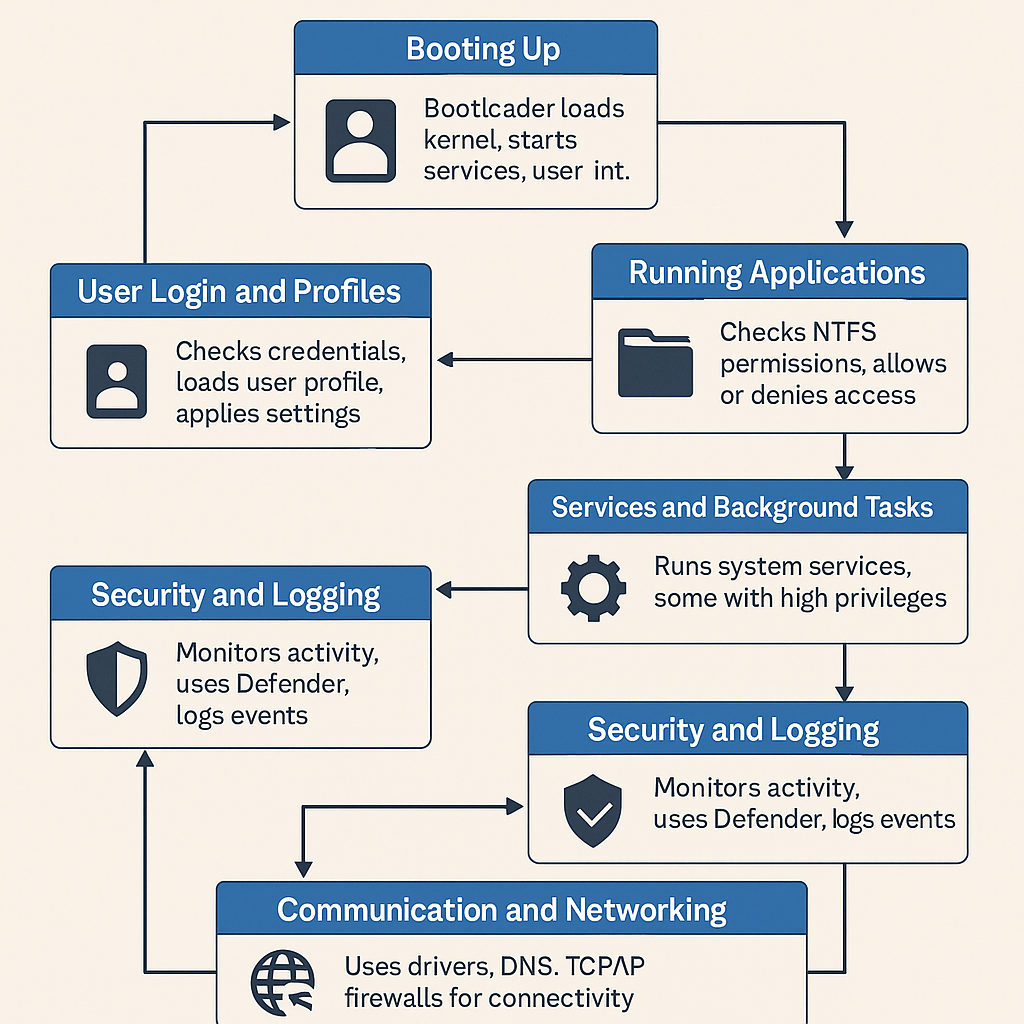
How Everything Works Together in Windows
You’ve learned the parts — now let’s walk through how Windows functions as a whole system, from boot to shutdown. Understanding these workflows helps you see where privilege escalation opportunities appear in real-time.
1. Booting Up
- The system powers on and runs the bootloader (like BOOTMGR).
- Windows loads the kernel, essential drivers, and system services.
- The GUI (
explorer.exe) launches for user interaction. - Services run in the background, some with SYSTEM privileges.
- The Registry provides configuration — it dictates which services start and how.
🔎 Privesc angle: Misconfigured boot services or autoruns can be hijacked before a user even logs in.
2. User Login & Profiles
- You log in with a local or domain account.
- Credentials are checked against the SAM (local) or Active Directory (domain).
- If successful, Windows loads:
- Your profile from
C:\Users\YourName - Your HKCU Registry hive
- Startup apps and Registry autorun keys
- Your profile from
🔎 Privesc angle: Autoruns and profile-based persistence live here. Also check %APPDATA% and Startup folders for backdoors.
3. Running Applications
- Every app becomes a process running in User Mode.
- It interacts with the system using the Win32 API.
- Permissions and token privileges determine what it can do.
🔎 Privesc angle: Processes with unnecessary permissions or high-integrity levels are great escalation targets.
4. File Access and Permissions
- When an app reads or writes files, Windows checks ACLs (NTFS permissions).
- If access is denied, UAC may prompt for elevation.
🔎 Privesc angle: If a folder or file is writable by a low-privileged user, and it’s executed by a SYSTEM-level process — it’s exploitable.
5. Services and Background Tasks
- Services run persistently, often under SYSTEM.
- Scheduled tasks can run scripts as SYSTEM or Admin — if misconfigured.
🔎 Privesc angle: Hijack unquoted service paths, DLL loads, or scheduled task scripts.
6. Security and Logging
- Windows constantly logs:
- Logons
- Process starts
- Security events
- Security features like Defender, Credential Guard, and SmartScreen protect the system.
🔎 Privesc angle: Logs can help you identify escalation paths — or be wiped to cover tracks. Security features may need bypassing.
7. Networking & Communication
- Windows uses:
- DNS to resolve domains
- TCP/IP to connect over the network
- Windows Firewall to enforce traffic rules
- Remote features like WinRM, RDP, and SMB provide remote access
🔎 Privesc angle: Remote management interfaces are often overlooked and may let you reuse stored credentials for lateral movement.
Why This Matters
Understanding Windows internals gives you:
✅ Awareness of how the system operates
✅ Clarity on why a misconfig matters
✅ Insight into how to escalate, persist, and pivot like a pro
Final Thoughts
Windows may seem familiar on the surface, but under the hood, it’s a complex operating system packed with moving parts — each of which can open a door for privilege escalation if misconfigured.
As a pentester, you don’t just need to use Windows — you need to understand it deeply:
- How the OS starts and what controls execution
- Where users and services live — and how they’re isolated or not
- What permissions matter — and how to bypass or exploit them
- Where sensitive files, tokens, and credentials are stored
- How the Registry, file system, and service manager all tie together
This knowledge transforms you from a tool-user into a system operator — someone who can analyze, exploit, and own a Windows box with purpose and precision.