
Understanding Linux
Linux isn’t just another operating system—it’s the backbone of modern infrastructure. From web servers to firewalls and cloud platforms, Linux is everywhere. As a pentester, you’ll not only attack Linux-based systems, but also use Linux as your primary tool for offensive security work.
This post will give you a solid understanding of how Linux works, what makes it different, and what parts of it matter most for hacking, exploitation, and privilege escalation.
What Is Linux?
At its core, Linux is an operating system (OS)—a piece of software that manages hardware and software resources, and provides an interface for users and programs to interact with the system.
The Three Layers of Linux:
- Kernel: The core of the OS. It handles low-level tasks like memory, CPU, disk I/O, and hardware communication.
- Shell: A command-line interface (CLI) that lets users interact with the kernel. Examples:
bash,sh,zsh. - Userland: Everything else—applications, libraries, system tools, file explorers, etc.
This modular design is what makes Linux flexible and powerful.
Why Linux Matters for Pentesters
Pentesters encounter Linux constantly, because it powers:
- Most web servers and cloud infrastructure
- Firewalls, routers, switches, VPNs, and IoT devices
- Security tools like Nmap, Burp Suite, Metasploit
- Pentesting distros like Kali Linux, Parrot OS, and BlackArch
Understanding Linux is essential if you want to:
- Exploit vulnerabilities
- Move through networks
- Escalate privileges
- Cover your tracks
- Use the same tools defenders use
Linux Distributions (Distros)
A distro is a packaged version of Linux that includes the kernel + a collection of user tools + a package manager.
Common Distros and Use Cases:
| Distro | Description |
|---|---|
| Ubuntu | Beginner-friendly; widely used on servers |
| Debian | Extremely stable; Ubuntu is based on it |
| Kali Linux | Built for penetration testing; preloaded with tools |
| Parrot OS | Lightweight and secure; another popular pentesting distro |
| Arch Linux | Minimalist, for advanced users who want full control |
As a pentester, you’ll likely use Kali or Parrot as your daily driver.
Understanding the Linux File System
Unlike Windows (with C:\, D:\, etc.), Linux uses a single-rooted tree structure with / at the top.
Here’s a breakdown of the key directories:
| Path | What It Holds |
|---|---|
/ | Root directory (top-level) |
/bin | Basic system commands like ls, cp, mv |
/sbin | System binaries (used by root/admin) |
/etc | Configuration files for the system and services |
/home | User directories (/home/alex, /home/kali, etc.) |
/root | Home directory for the root user |
/tmp | Temporary files, deleted on reboot |
/var | Logs, spool files, variable data |
/usr | User programs and libraries |
/lib | Essential system libraries |
/proc | Virtual directory showing real-time system info (processes, hardware) |
/dev | Device files (USBs, hard drives, /dev/null) |
As a pentester, you’ll explore these directories to find misconfigurations, sensitive data, and ways to escalate privileges.
Permissions and Ownership in Linux (Expanded)
In Linux, everything is a file — and file permissions form the backbone of security and access control. Misconfigured permissions can lead to privilege escalation or data leaks, making them a favorite hunting ground for pentesters.
The Linux Permission Model
Every file and directory has:
- Owner: The user who owns the file.
- Group: A group that the file is assigned to.
- Permissions for three categories of users:
- User (u): The file owner
- Group (g): Users in the group assigned to the file
- Others (o): Everyone else
Permission Breakdown
File permissions are shown when you run ls -l:
-rwxr-xr-- 1 user group 1234 May 18 script.sh
-: This is a regular file (could also bedfor directory,lfor symlink, etc.)rwx: Owner can read, write, and executer-x: Group can read and execute, but not writer--: Others can only read
Numeric (Octal) Mode
Each permission has a numeric value:
| Number | Permission | Meaning |
|---|---|---|
| 7 | rwx | Full access |
| 6 | rw- | Read and write |
| 5 | r-x | Read and execute |
| 4 | r– | Read only |
| 0 | — | No access |
You can set permissions using chmod with numeric values:
chmod 755 script.sh
# Owner: rwx (7)
# Group: r-x (5)
# Others: r-x (5)
Symbolic Mode
Alternatively, you can use symbolic notation:
chmod u+x script.sh   # Add execute for owner
chmod g-w script.sh   # Remove write from group
chmod o=r script.sh   # Set others to read-only
Special Permission Bits
These are crucial for pentesters, especially during privilege escalation:
SUID (Set User ID)
- Set with:
chmod 4755 filename - When a file with SUID is executed, it runs with the permissions of the file owner, not the user running it.
- Classic example:
/usr/bin/passwd— lets users change their own password by modifying/etc/shadow, a root-owned file.
Pentester Tip: Look for SUID binaries owned by root. Exploitable ones might allow privilege escalation to root.
find / -perm -4000 -type f 2>/dev/null
SGID (Set Group ID)
- Set with:
chmod 2755 filename - For files: runs with the group privileges of the file.
- For directories: files created inside inherit the directory’s group.
Use case: Shared workspaces where users need to collaborate on files with the same group permissions.
Sticky Bit
- Set with:
chmod +t /directory - Typically used on shared directories (like
/tmp). - Prevents users from deleting or renaming files owned by others, even if they have write permissions to the directory.
Checking Permissions
Use ls -l to inspect permissions:
ls -l /path/to/file
Use stat for detailed output:
stat script.sh
Common Permission Misconfigurations to Watch For
| Misconfiguration | Risk |
|---|---|
World-writable scripts or binaries (chmod 777) | Easy to tamper with or inject malicious code |
| SUID binaries owned by root | Potential privilege escalation vectors |
| Misconfigured cron jobs or backups | Lateral movement or privilege escalation |
| Scripts running with root permissions but writable by low-priv users | Command injection or privilege escalation |
Users and Groups
Linux users and their privileges are stored in:
/etc/passwd: List of user accounts/etc/shadow: Encrypted passwords/etc/group: Group memberships
You can check user info with:
whoami
id
cat /etc/passwd
Root has a UID of 0. If you get a shell as root, you own the system.
Package Managers
Instead of .exe installers, Linux uses package managers to install software from secure repositories.
| Distro | Manager | Example |
|---|---|---|
| Debian/Ubuntu/Kali | apt | sudo apt install nmap |
| Arch Linux | pacman | sudo pacman -S wireshark |
| Red Hat/Fedora | dnf | sudo dnf install htop |
Kali uses APT, so get familiar with:
sudo apt install
sudo apt update
Processes, Services, and the Boot Process
- View running processes:
ps aux,top,htop - Start/stop services:
sudo systemctl start/stop ssh
sudo systemctl status apache2
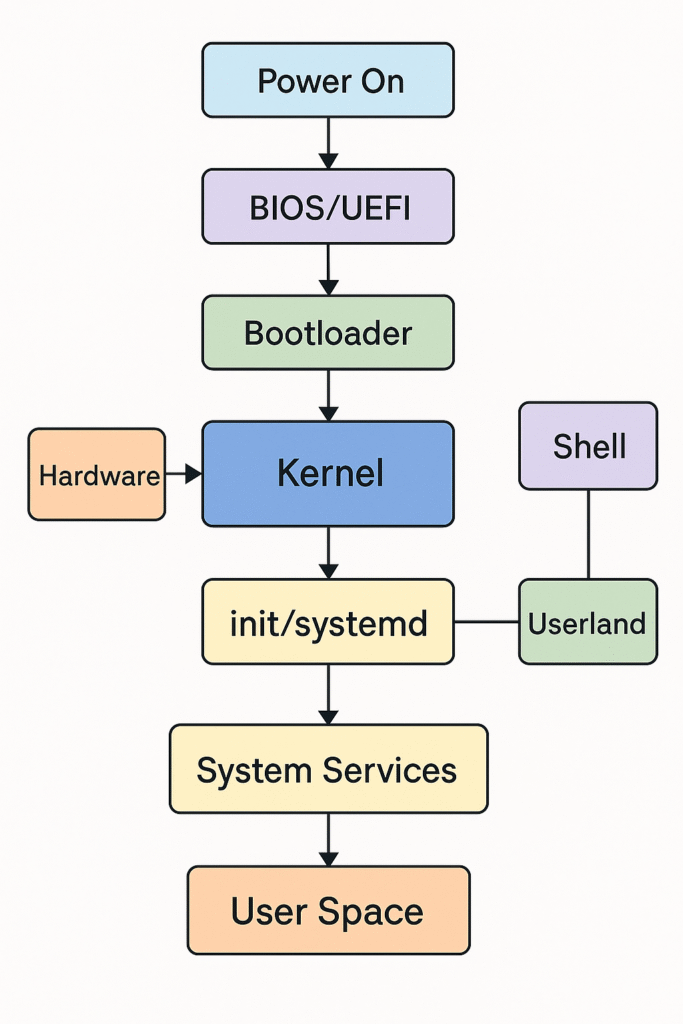
Linux Boot Process (Simplified):
- BIOS/UEFI starts and runs GRUB
- GRUB loads the Linux kernel
- Kernel initializes hardware and mounts root filesystem
- init/systemd starts all system services
Important System Files and Logs:
/etc/shadow– Password hashes (priv esc gold)/etc/crontab– Scheduled tasks (good for persistence)/var/log/auth.log– Login attempts/var/log/syslog– General system messages/boot/grub/grub.cfg– Bootloader config (can be manipulated for persistence or rootkits)
Environment Variables:
What Are Environment Variables?
Think of environment variables as sticky notes your Linux system uses to keep track of important info — like who’s using the system, where things are stored, and how programs should behave.
These notes live in the background and get passed along to programs every time something runs.
For example:
USER=alex
This just means the current user is named “alex”.
What Do They Do?
Environment variables help:
- The terminal know where your home folder is
- Programs find the right files
- The shell know where to look for commands
They make the system more flexible by telling it how to behave without changing the actual code of programs.
Some common ones:
| Variable | What it tells the system |
|---|---|
USER | Who is logged in |
HOME | Where your personal files are |
PATH | Where to look when you type a command |
SHELL | Which shell you’re using (bash, etc.) |
You can see them all with:
env
Or just one:
echo $USER
Temporary vs Permanent
- Temporary variables are like short-term memory — they vanish when you close the terminal.
- Permanent ones go in a file like
~/.bashrcso they stick around every time you log in.
Why This Matters for Pentesters
As a pentester, environment variables can help or hurt a system’s security:
- If a system checks the wrong folders in
PATH, you could run your own malicious programs. - Some programs use environment variables insecurely, letting attackers trick the system into running custom code.
- Sometimes you’ll find sensitive info like passwords or keys stored in environment variables.
- You can even use them to create backdoors that automatically run every time someone logs in.
Real-World Example: Exploiting a Misconfigured PATH
Let’s say there’s a script on a Linux system that’s supposed to run the ls command to list files. The script just says this:
#!/bin/bash
ls
Now imagine the PATH variable is misconfigured so it checks the /tmp directory before it checks /bin (where the real ls lives):
echo $PATH
/tmp:/usr/local/sbin:/usr/local/bin:/usr/sbin:/usr/bin:/sbin:/bin
You can exploit this by creating your own fake ls command in /tmp:
echo -e '#!/bin/bash\necho "Hacked!"' > /tmp/ls
chmod +x /tmp/ls
Now, when that script runs ls, it won’t run the real one — it’ll run yours in /tmp instead.
Result:
Hacked!
You’ve just hijacked a system command by abusing the PATH — and this can be much more dangerous if the script is run with higher privileges, like with sudo or as root. This is a classic example of PATH hijacking, and it’s a valuable trick in post-exploitation or privilege escalation scenarios.
Real-World Linux Use Cases
- Web servers run Apache, Nginx, MySQL, PHP—all Linux-based
- Cloud services (AWS, Azure) default to Linux VMs
- Routers/firewalls use embedded Linux
- Security tools run natively on Linux
- Android is based on the Linux kernel
Final Thoughts
Linux is both the platform you’ll hack into and the one you’ll hack from. Understanding how it works at a system level gives you the power to:
- Find vulnerabilities
- Exploit misconfigurations
- Move laterally through networks
- Maintain persistence
- Erase your tracks
Whether you’re running your own tools or navigating a target system, Linux is home turf for the offensive security professional.